Binance
Important information regarding Binance. Please read it carefully:
- Only USDT perpetuals are supported and tested.
- Only futures trading is supported; the spot market is not available.
- One Way and Hedge mode is supported
- Hedge mode is recommended
- Check if the master and slave are configured the same, such as One Way or Hedge mode, leverage, and so on.
- Binance does not support multiple positions for the same symbol, only a single aggregated position. If there are multiple positions on the master account, they will be merged into one. In this case, the ticket number of the oldest position on the master account will be used for tracking purposes.
- Since Binance only supports one aggregated position per symbol, MetaCopier adapts TP/SL management as follows:
- For Buy Positions:
- The highest Take Profit (TP) among all master positions is applied.
- The lowest Stop Loss (SL) among all master positions is applied.
- For Sell Positions:
- The lowest Take Profit (TP) among all master positions is applied.
- The highest Stop Loss (SL) among all master positions is applied.
- For Buy Positions:
- Price differences between a normal Broker and Binance
- There can be significant price differences between a normal broker and Binance (a direct market exchange). This is due to variations in liquidity, spreads, and pricing models used by brokers versus exchanges.
- To ensure accurate risk management, we highly recommend enabling the #tp-sl-management feature in MetaCopier and activating the "Adjust with master distance" option. This ensures that Take Profit (TP) and Stop Loss (SL) levels are adjusted dynamically based on the price difference between the master and slave accounts, improving trade execution reliability.
- Check the profit of the trades and adjust the multiplier to align the profit on the slave account, since Binance works differently compared to a traditional forex broker.
- When adding a copier to the Binance account, the option "Hide comment" must be activated. Manual trading or positions opened by other systems on the slave account are not recommended while this option is active, because a position can still be misclassified.
- For EU residential users, deployment from New York will not work, it will appear disconnected, as the New York region is restricted to U.S. residents. Please select a different region.
How to generate an API Key and Secret Key on Binance
For EU residential users, deployment from New York will not work, it will appear disconnected, as the New York region is restricted to U.S. residents. Please select a different region.
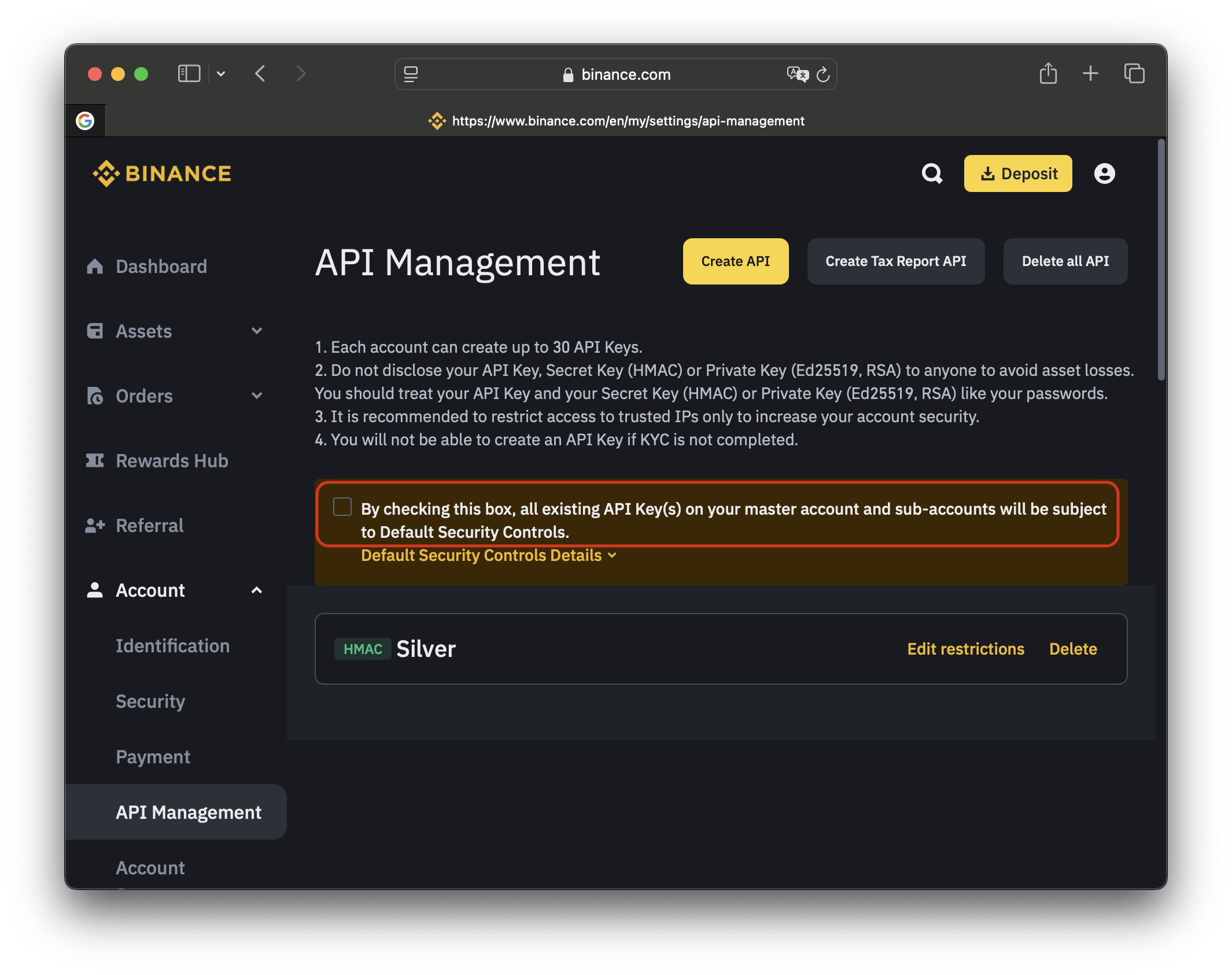
If the default security cannot be disabled, the API key must be restricted to a source IP. To do this, you have two options:
- Buy a dedicated proxy and attach it to an existing MT4, MT5, or similar account so the IP will be visible in the green "PROXY" label.
- If you do not have any accounts yet in your project, then the default security in Binance must be disabled so that you can deploy the Binance account with your dedicated IP. After deploying, the dedicated IP will be visible in the green "PROXY" label. You can then copy it and restrict the API key using this dedicated IP.
Please note that if a dedicated IP is used, there will be no redundancy in case of connection issues and the connection to the account could be lost. We recommend not using a dedicated IP with Binance.
To connect your Binance account to MetaCopier, you can generate your API keys using one of the following methods:
-
Automatic Key Generation (not recommended) – Use the button in our web app to generate your API Key and Secret Key automatically.
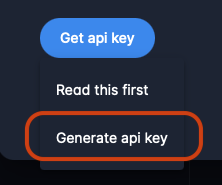
Important notice: You can only generate one API key, and you must deactivate the default security:
-
Manual Key Generation (recommended) – If you prefer, you can manually create and configure your API keys by following the steps below to ensure secure setup.
Step 1: Log in to Binance
- Go to the Binance website.
- Click Log In and enter your credentials (email and password).
- Complete the 2FA authentication (if enabled).
Step 2: Navigate to API Management
- Click on your profile icon (top-right corner).
- Select Account -> API Management from the dropdown menu.
Step 3: Create a new API Key
- Under API Key Management, click Create API.
- Choose System-generated API Key or Self-generated API Key.
- Enter a label/name for your API key (e.g., "MetaCopier").
- Click Next and complete the security verification (email/SMS/Google Authenticator).
Step 4: Configure API key permissions
- Copy and store your API Key and Secret Key securely.
- The Secret Key is shown only once-make sure to save it.
- Edit API restrictions:
- Enable "Enable Futures"
- Enable "Enable Spot & Margin Trading"
- Click Save to finalize the setup.
Step 5: Connect to MetaCopier
- Log in to MetaCopier.
- Create an binance account
- Enter the API key and Secret key in the password field using the format: apikey|secretkey
Security tips
- Do not share your Secret Key with anyone.