MatchTrader
MatchTrader does not officially support third-party integrations and provides only limited API access.
If you're unable to add your account, please consider contacting your broker to ask whether API access is permitted and if any relevant documentation is available.
If possible, we also recommend considering alternative platforms that offer more stable and reliable support.
Important: MatchTrader uses different lot size values compared to other platforms. Before trading, verify that a lot size of 0.05 (for example) corresponds to the expected value in your account currency.
MatchTrader currently does not provide the broker ID / Partner ID required to connect via the API (but they are working on it). You can request this information from your broker or try the following tip.
Open the MatchTrader WebUI in your browser, then inspect the source code of the WebUI. Depending on your browser, follow these steps (or search in Google if you are not sure):
In Google Chrome:
- Right-click anywhere on the page.
- Select "View Page Source" from the context menu, or use the keyboard shortcut Ctrl + U (Windows/Linux) or Cmd + Option + U (Mac).
In Mozilla Firefox:
- Right-click anywhere on the page.
- Select "View Page Source" from the context menu, or use the keyboard shortcut Ctrl + U (Windows/Linux) or Cmd + U (Mac).
In Internet Explorer:
- Right-click anywhere on the page.
- Select "View Source" from the context menu, or press Alt + Ctrl + U.
Within the source code, look for the term "brokerId". You should find something like this:
coIntegration: {
        managerUrl: '/manager',
        brokerId: '2',
        coUrl: ''
    },
In this case, the broker ID is 2. In the screenshot below, you can see a working configuration for a challenge at E8 Markets. Use it as a reference if needed.
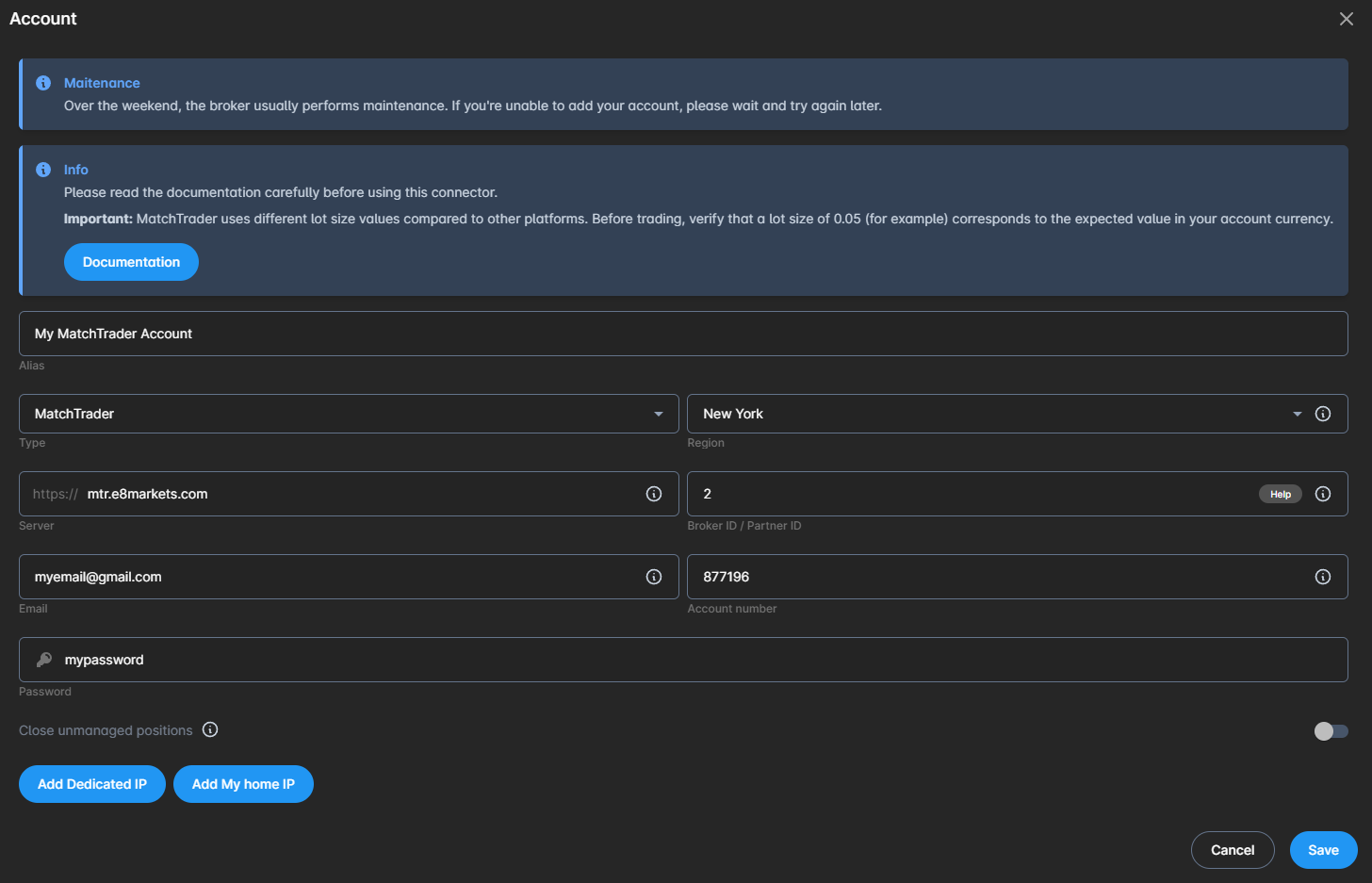
MatchTrader example configuration