Tradovate
Important information regarding Tradovate. Please read it carefully:
- Only futures trading is supported and tested.
- Tradovate accounts can be connected in two ways:
- API key (recommended): you enter your Tradovate username, password and a Tradovate API key. After a Tradovate outage or maintenance the account reconnects automatically.
- OAuth login: you log in on Tradovate's login page with the "Get token" button. If Tradovate is unavailable for longer than the token lifetime, you have to log in again (see Token Expiry and Reauthorization).
- Demo and Live environments are supported.
- When adding a copier to the Tradovate account, the option "Hide comment" must be activated. Manual trading or positions opened by other systems on the slave account are not recommended while this option is active, because a position can still be misclassified.
- API access is not always a paid add-on. Many brokers and prop firms running on Tradovate (or NinjaTrader) enable API access automatically and free of charge for their clients. Always try to connect first. Only if the connection fails with an API access error do you need to purchase the "API Access" add-on from your Tradovate account settings.
- Market data (quotes/ask/bid) is disabled by default. Tradovate requires you to contact their support to activate market data access for your API account. Whether you need it depends on how the Tradovate account is used:
- Tradovate as master: market data is not required. Positions, entry prices, stop loss and take profit are read without quotes, and features such as risk per trade lot sizing use the prices of the slave account. Only the displayed per-position profit is approximated (see Profit Calculation).
- Tradovate as slave: without market data, features that rely on real-time quotes of the Tradovate account (such as breakeven, deviation/slippage protection, and risk per trade lot sizing) will not work.
- With OAuth login, reauthorization may be required after a Tradovate outage or maintenance. With an API key this is not needed. See Token Expiry and Reauthorization below.
How to connect your Tradovate account
When you create a Tradovate account in MetaCopier, choose between API key and OAuth login. We recommend the API key, because the account reconnects automatically after a Tradovate outage or maintenance window. Use OAuth login if you cannot create an API key, for example on most prop firm accounts.
Option 1: API key (recommended)
Step 1: Create an API key in Tradovate
- Log in to Tradovate.
- Open Application Settings → API Access and generate a new API key.
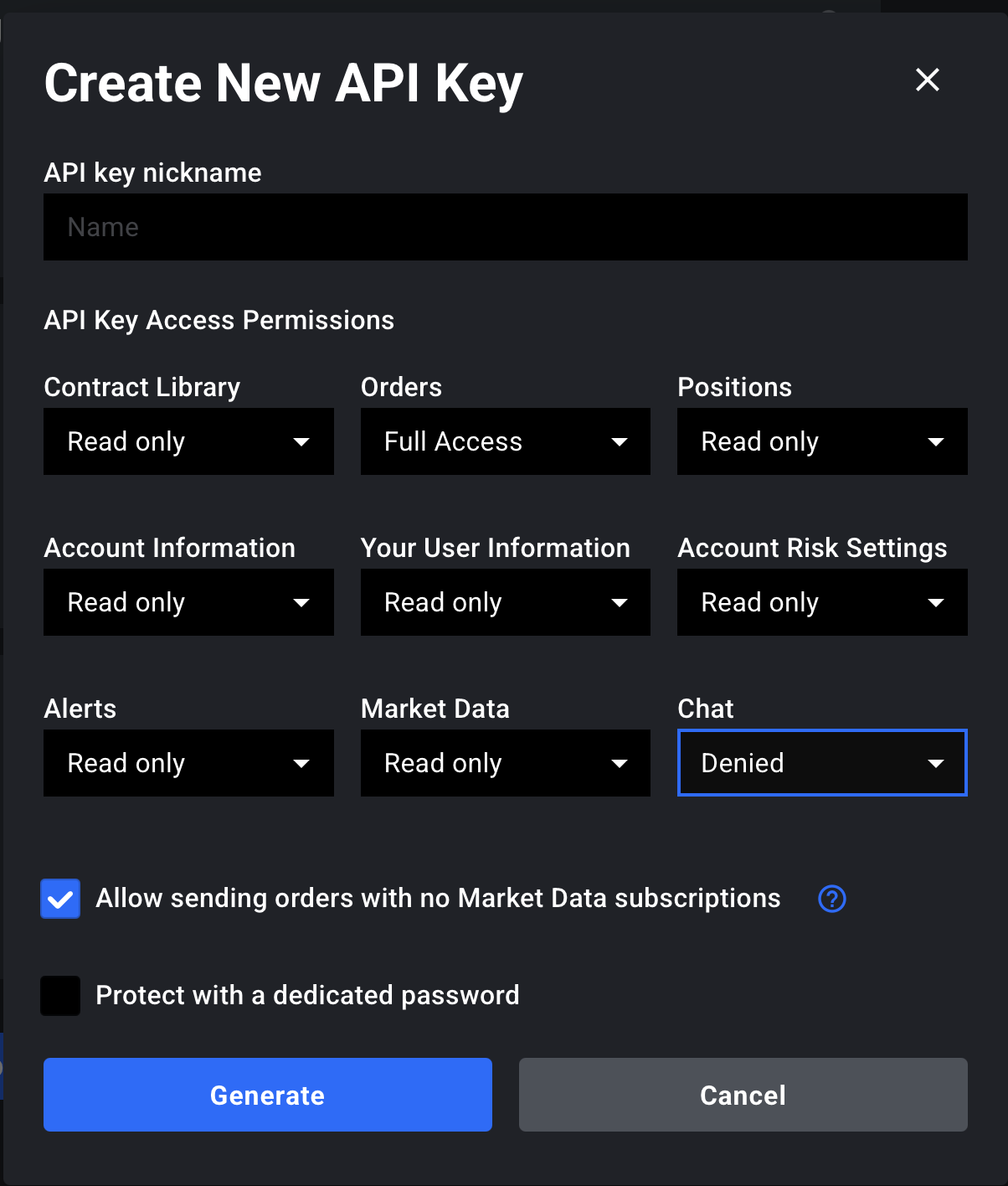
- Copy the API key ID (cid) and the API secret (sec). The secret is shown only once.
- Creating API keys requires the Tradovate "API Access" add-on. It is usually not available for prop firm accounts; in that case use the OAuth login.
Step 2: Add the account in MetaCopier
- Log in to MetaCopier and create a new Tradovate account.
- Select API key.
- Enter your Tradovate username, password, API key ID (cid) and API secret (sec).
- Click Load accounts and select your account from the list. Demo and live accounts of the user are listed together; the environment is set automatically.
- Save the account.
Tradovate allows only 2 sessions per user. Use a dedicated Tradovate user for MetaCopier and do not log in with it anywhere else, otherwise the sessions disconnect each other.
If Tradovate rejects the login, check the username, password, API key ID and API secret. After several failed logins Tradovate blocks further logins for a while. MetaCopier then waits and retries automatically after about 20 minutes.
Option 2: OAuth login
On white-label platforms, the OAuth login is only available if the white-label provider has configured its own Tradovate OAuth credentials. Otherwise, only the API key login is shown.
Step 1: Create a Tradovate account in MetaCopier
- Log in to MetaCopier.
- Create a new Tradovate account and select OAuth login.
- Select Demo or Live as the server environment.
Step 2: Authorize via OAuth
- Click the "Get token" button to start the OAuth flow.
- You will be redirected to Tradovate's login page in your web browser.
- Log in with your Tradovate credentials and authorize MetaCopier to access your account.
- After authorization, the access token will be set automatically.
- Select your account from the dropdown list.
Step 3: Only if the connection fails - enable API Access
If the authorization or the account list fails with an API access / permission error, your account does not have API access yet:
- Log in to your Tradovate account.
- Open your account settings and subscribe to the "API Access" add-on.
- If you trade with a broker or prop firm built on Tradovate or NinjaTrader, contact their support first - many of them enable API access for free, so the paid add-on is not needed.
- Once API access is active, repeat Step 2.
Security Tips
- OAuth login: MetaCopier only stores an access token - your Tradovate username and password are never stored.
- API key: MetaCopier stores your username, password and API key encrypted, so it can log in again by itself. Use a dedicated Tradovate user and change the password or revoke the API key in Tradovate if you no longer use MetaCopier.
Token Expiry and Reauthorization
Tradovate access tokens are valid for 90 minutes. MetaCopier renews the token automatically in the background before it expires, so under normal conditions no action is required from you.
However, Tradovate only allows a token to be renewed while it is still valid. If the Tradovate API is unavailable for longer than the remaining token lifetime (for example, during a scheduled Tradovate maintenance window or an extended outage), the renewal cannot succeed and the token expires.
How MetaCopier recovers depends on how the account is connected:
- API key: MetaCopier logs in again with your stored credentials as soon as Tradovate is available again. No action is required.
- OAuth login: Tradovate does not provide a refresh token, a longer token lifetime, or a grace period for expired tokens. We contacted the Tradovate API team about this, and their official answer is that once the token has expired, the user must repeat the OAuth authorization flow to reconnect. MetaCopier sends an email to the users of the project when an OAuth token has expired (at most once per day per account).
To avoid manual reauthorization, switch the account to an API key: open the account settings, select API key, enter your credentials and save.
What to do if your OAuth-connected Tradovate account is disconnected:
- In MetaCopier, click the gear icon of your Tradovate account and select "Settings".
- Click the "Get token" button and log in to Tradovate again to authorize MetaCopier.
- Save the account. The connection and copying resume automatically.
While the OAuth token is expired, MetaCopier cannot access your Tradovate account and no trades are copied to or from it. After a known Tradovate maintenance window or outage, check your OAuth-connected Tradovate accounts in MetaCopier and reauthorize them if needed.
Profit Calculation
Tradovate's API does not provide per-position unrealized P&L (profit). The position endpoint only returns entry price, quantity, and direction - but no current market value or profit field.
To display profit for open positions, MetaCopier uses two strategies depending on market data availability:
- With market data enabled: If real-time quotes (WebSocket market data) are activated on your Tradovate account, MetaCopier calculates per-position profit precisely using live bid/ask prices.
- Without market data (default): When market data is not activated, MetaCopier uses the account-level
openPnLvalue from Tradovate's cash balance snapshot, which is refreshed every 30 seconds. If you have a single open position, the fullopenPnLis assigned to that position. If you have multiple positions in different contracts, theopenPnLis distributed proportionally by lot size.
The profit displayed without market data is an approximation based on account-level data. For precise per-position profit, activate market data access by contacting Tradovate support.
Stop Loss and Take Profit
Tradovate positions have no stop loss or take profit field. Protection is placed as separate working orders (brackets) on the same contract. MetaCopier derives the stop loss and take profit of a position from these working orders:
- Stop loss: a working stop, stop-limit or trailing stop order on the exit side of the position.
- Take profit: a working limit order on the exit side of the position.
This works for brackets placed by MetaCopier as well as for brackets placed outside MetaCopier, for example from TradingView, the Tradovate or NinjaTrader platform, or an ATM strategy. When you move a bracket order, the new price is picked up with the next update. Brackets placed outside MetaCopier are only detected on a master account. On a slave account MetaCopier only tracks the brackets it placed itself.
Tradovate master positions are refreshed every few seconds. If your slave uses 'Correct lot size based on SL' and the stop loss is attached right after the entry, set 'Wait for master SL (seconds)' to at least 10 so the copier does not give up before the stop loss is detected. See Risk per trade.